
Amazon Listing Suppressed Due to Images? 6 Rejection Reasons & How to Fix Them (2026)
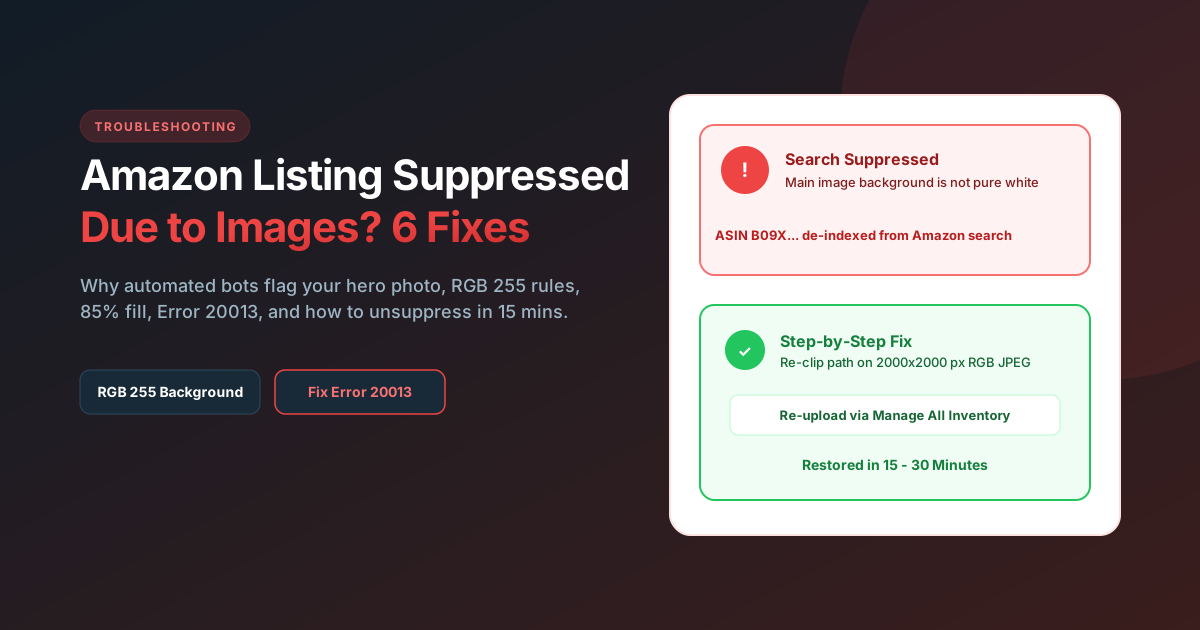
Quick Answer: An Amazon listing gets suppressed (hidden from customer search results) whenever its primary photo violates Amazon’s automated main image standards. The 6 most frequent triggers are: (1) Background is off-white rather than pure RGB (255, 255, 255), (2) The product fills less than 85% of the frame, (3) Promotional text, warranty badges, or seller logos are visible on the image, (4) Unsold props or excessive packaging are shown, (5) Unlabeled photorealistic AI models, and (6) Technical file formatting errors like CMYK color space or file sizes over 10 MB (Error 20013). Fixing the asset and re-uploading via Seller Central restores your listing within 15 to 30 minutes.
What does image suppression mean on Amazon?
When Amazon suppresses a product listing due to an image defect, your product does not disappear from the catalog entirely, but it is completely de-indexed from organic search results and browse nodes. Shoppers typing your exact keywords will not find your ASIN.
Even worse: active Amazon Sponsored Products and Sponsored Brands campaigns attached to that ASIN stop running immediately, killing your sales momentum and BSR (Best Sellers Rank). The listing remains accessible only to buyers who have the exact direct URL.
Rejection reasons and studio fixes at a glance
Before modifying files blindly, compare your current image against Amazon’s automated detection triggers:
| Rejection Trigger | Amazon Rule | Studio Fix |
|---|---|---|
| Off-white or Gray Background | Main photo background must be pure white (RGB 255, 255, 255). Even RGB 254 triggers algorithmic suppression. | Clip product with a clean pen path; export against absolute white canvas (#FFFFFF) with natural grounding drop shadow. |
| Product Too Small in Frame | Product must occupy at least 85% of the total image area. | Crop the canvas tight around the product edges so product dominates the 2000 x 2000 px frame. |
| Text, Logos, Badges, or Watermarks | Zero text, seller logos, warranty badges, star ratings, or “Amazon’s Choice” icons allowed on the main photo. | Remove all overlay text and badges from main image. Move claims, guarantees, and certifications to secondary infographics or A+ Content. |
| Unsold Accessories or Props | Only items included in the purchase may appear. Props that confuse what is in the box trigger immediate suppression. | Photograph or render only the exact physical items included in the unit packaging. |
| Unlabeled AI Human Models | Photorealistic AI-generated human performers must be disclosed in file metadata (contains-synthetic-performer). |
Inject mandatory XMP metadata tag or use real studio human photography. |
| Technical Formatting / Error 20013 | File must be under 10 MB, RGB color space (never CMYK), and at least 1,000 px on longest side for zoom. | Save as standard RGB JPEG at 85-90% quality, 2000 x 2000 px, keeping file size around 1.5 to 3.0 MB. |
The 6 exact reasons Amazon rejects main images
1. Off-white, Gradient, or Shadowed Backgrounds (Not RGB 255, 255, 255)
Amazon uses automated computer vision models to inspect every pixel along the perimeter of your main image. If your background is slightly cream, light gray, or contains camera vignetting, the system marks the background as non-compliant.
The Fix: Open the image in Photoshop or your editing tool. Sample the canvas corners with the eyedropper tool. All three color channels (Red, Green, Blue) must read exactly 255, 255, 255. Subtle contact shadows directly underneath the product base are permitted, but ambient background gray gradients will trigger suppression.
2. The Product Fills Less Than 85% of the Frame
When buyers browse on mobile devices, small products with huge empty white margins are impossible to inspect. Amazon enforces an 85% fill rule so products stand out in the search grid.
The Fix: Do not add artificial white padding. Crop your 2000 x 2000 px square canvas tight against the outermost contours of your product so it fills 85% to 90% of the visual space without clipping the product edges.
3. Promotional Badges, Guarantees, or Text Callouts
Many sellers attempt to paste “100% Organic”, “Lifetime Warranty”, or star rating graphics directly onto the main image. Amazon’s OCR (optical character recognition) bots scan main photos for text strings and immediately flag the listing.
The Fix: Keep the main hero photo strictly clean. All visual callouts, certifications, and benefit breakdowns should be designed into your second through seventh gallery slots (Amazon listing infographics) where Amazon explicitly permits rich graphics and copy.
4. Props, Packaging, and Confusing Inclusions
If you sell a chef knife, showing a wooden cutting board, tomatoes, and garlic in the main image will get your listing suppressed because a buyer could assume the cutting board is included.
The Fix: Show only what ships inside the box on the main image. If packaging is a core branded differentiator, you may show the product alongside its retail box, provided the product itself is the dominant subject.
5. Unlabeled Photorealistic AI Human Models
Under Amazon’s updated image guidelines, if your product photo features a photorealistic synthetic person created with generative AI tools (Midjourney, Stable Diffusion, etc.), you must append the metadata keyword contains-synthetic-performer to the file’s XMP dc:subject metadata block. Listings failing to tag AI-generated humans face compliance reviews.
6. Technical File Formatting Errors (Error 20013 & CMYK)
Files uploaded in print CMYK color profiles or files exported at extreme raw dimensions exceeding 10 MB (10,485,760 bytes) fail during Seller Central processing, generating Amazon Error 20013.
The Fix: Convert the color profile to sRGB IEC61966-2.1 and export as a high-quality JPEG at 2000 x 2000 pixels at 72 or 300 DPI.
How to fix a suppressed listing in Seller Central (Step-by-Step)
- Log in to Amazon Seller Central.
- Go to Catalog > Complete Your Drafts or Inventory > Manage All Inventory.
- Click the Suppressed or Search Suppressed and Inactive filter tab at the top.
- Locate the suppressed ASIN. Click the Fix issue link or check the Issue description column (it will typically state: “Main image missing pure white background” or “Non-compliant main product image”).
- Click Edit > Images tab.
- Delete the flagged main photo and upload your newly compliant RGB 255, 255, 255 JPEG.
- Click Save and Finish.
How long does it take? Amazon’s image scanning queue takes between 15 and 30 minutes to re-evaluate the asset. Once approved, the suppression banner disappears and your ASIN automatically re-indexes in search.
Why secondary images are rarely suppressed
Sellers often panic and think their entire image gallery is illegal. In reality, Amazon’s strict white-background rule applies only to the main hero image (the image that appears in search results).
Your secondary images (slots 2 through 7) can and should feature:
- Lifestyle photography showing real people using the product in context.
- Dimension diagrams and sizing specifications.
- Infographic callouts highlighting key product materials and benefits.
- Comparison charts contrasting your product with inferior alternatives.
For a full breakdown of secondary image rules, read our complete Amazon Product Image Requirements checklist.
How to prevent future image rejections
To ensure your listings never go dark unexpectedly:
- Use automated Photoshop actions: Set up an action that fills the background with RGB (255, 255, 255) and checks outer perimeter pixels before exporting.
- Audit before peak sales events: Amazon conducts automated compliance sweeps right before Prime Day and Q4 holidays. Audit all active main images well in advance.
- Work with specialist eCommerce designers: Marketplace graphic design requires technical precision. Unlike general graphic freelancers, dedicated studios design assets specifically to meet Amazon’s algorithm and style guides.
Is your listing stuck or suffering from low conversion rates?
Send us your ASIN or product link. Founder ABS Jony will personally record a free 5-minute Loom video breaking down 3 specific image and conversion fixes.
Frequently Asked Questions
How long does it take for Amazon to unsuppress a listing after uploading a new image?
In most cases, Amazon’s automated compliance algorithms review and approve updated main images within 15 to 30 minutes. If your listing remains suppressed after 24 hours, check the Manage Inventory dashboard to see if an additional attribute (such as brand name, UPC, or category classification) is also flagged, or open a case with Seller Support under “Fix a Product Page”.
Can I use props or accessories in Amazon main images?
No. Amazon strictly forbids props, accessories, or decorative elements that are not included with the product purchase. If an accessory is shown on the main image, buyers can claim item not as described. Move all props, lifestyle context, and recipes to your secondary gallery images.
Why was my listing suppressed after months of being active without changes?
Amazon continuously updates its computer vision and machine learning scanning models. An image that previously slipped through manual or legacy filters can be automatically flagged during a routine category catalog sweep if its background deviates from pure RGB 255, 255, 255 or if OCR bots detect text overlay.
What is Amazon Error 20013 on image uploads?
Amazon Error 20013 occurs when an uploaded image file size exceeds Amazon’s strict 10 MB (10,485,760 bytes) limit. Re-export your image as a flattened RGB JPEG between 2000 x 2000 px and 3000 x 3000 px with 85% compression quality to reduce file size below 3 MB while preserving zoom functionality.
Related guides: Compare Studio vs Fiverr Freelancers for Amazon Listing Images, review our Transparent Breakdown of Listing Image Costs, or check our full Pricing Page.